A dated record of your site's accessibility work
What failed, what changed, who approved it, and what was not checked. A WordPress plugin that finds specific WCAG 2.1 AA failures, helps you fix them in your actual content, and writes every step into an append-only ledger you can export.
Pro is available now. The free plugin is with WordPress.org for review. Pro is a separate plugin and does not wait for that: it includes everything the free one does. See what each includes.
Why a record, and not a score
Accessibility work usually leaves its evidence scattered across emails, ticket comments and memory. Then someone asks what you have done about it, and the honest answer is a shrug.
The European Accessibility Act has applied since 28 June 2025 to many products and services sold to consumers in the EU, online shops among them, wherever the seller is based. Its technical reference is WCAG 2.1 level AA, through EN 301 549. When the question comes, the answer should be a document with dates in it.
It does not make your site legally compliant, and no plugin can. It finds specific technical failures, helps you fix them properly, and documents the effort in a form you can show someone, with the tool's own limits written into it. It is not a certificate of conformance and it is not legal advice.
It is not an overlay. It adds nothing to the front end and does not change what visitors see at runtime. It changes the underlying content.
The ledger
Every accepted change is recorded with the date, the text before and after, the person who approved it, the AI provider that drafted it or the fact that a person wrote it, and whether the reviewer edited the draft.
The log is append-only. An undo is added as a new entry; nothing is erased.
It also records what stopped appearing. When a later scan of a page no longer finds a problem it had found before, that is written down with the date, and with whether the change was made here or somewhere else entirely. It counts only pages the scan got all the way through, and it is never presented as proof that anything was fixed — only that the check no longer sees it.
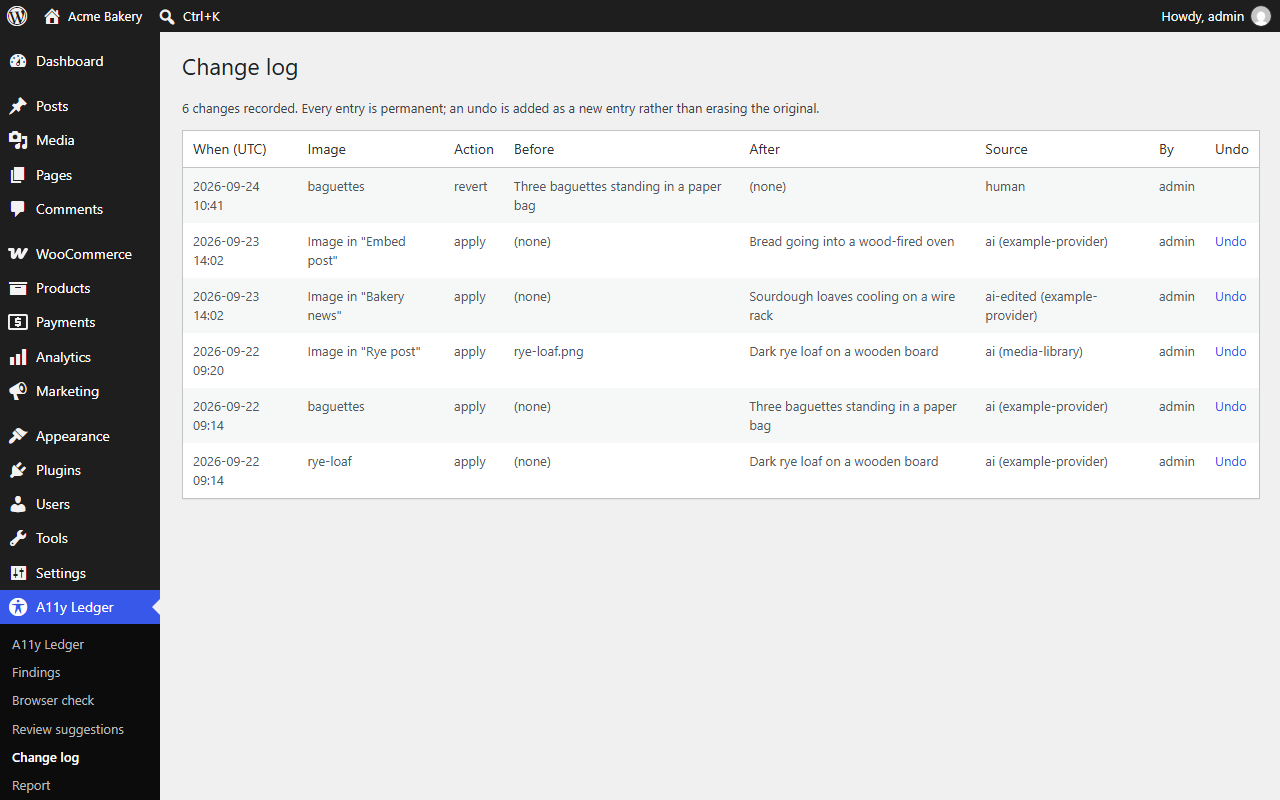
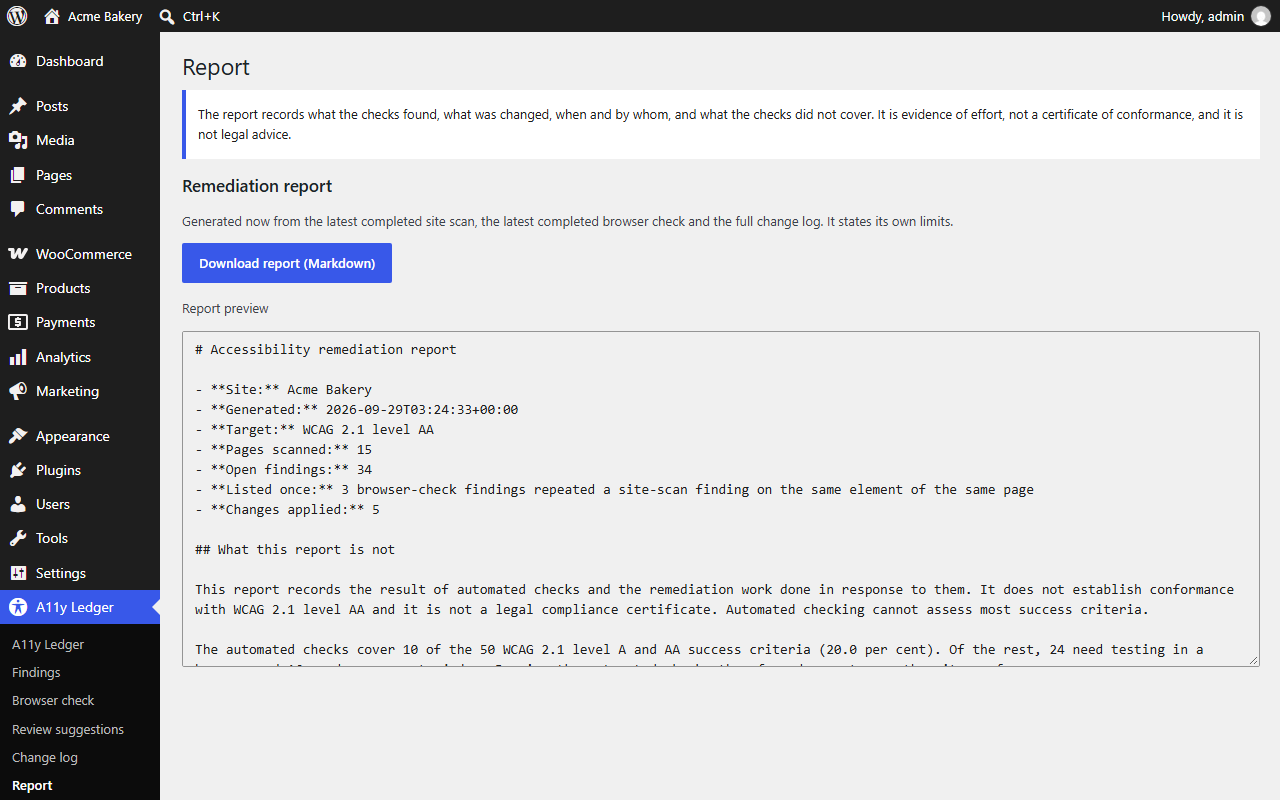
The report pulls the latest site scan, the latest browser check and the full change log into one Markdown file: open findings grouped by success criterion and page, every change, and a section on what the checks did not cover. Confirmed failures are kept apart from the things flagged for a person to look at, because running the two together is how a list of maybes turns into a claim.
How it finds problems
Site scan
Reads every published post and page and every library image in the background, then fetches each published page once to check what the theme adds. It finds:
- Images with no alt attribute, and alt text that is really a file name
- Links and buttons with no accessible name, including icon-only ones
- Form fields with no label, and frames with no title
- Headings that skip a level, and pages with no
h1 - A missing or malformed page language, and missing or placeholder titles
- Data tables with no header cells, and positive
tabindexvalues
Browser check
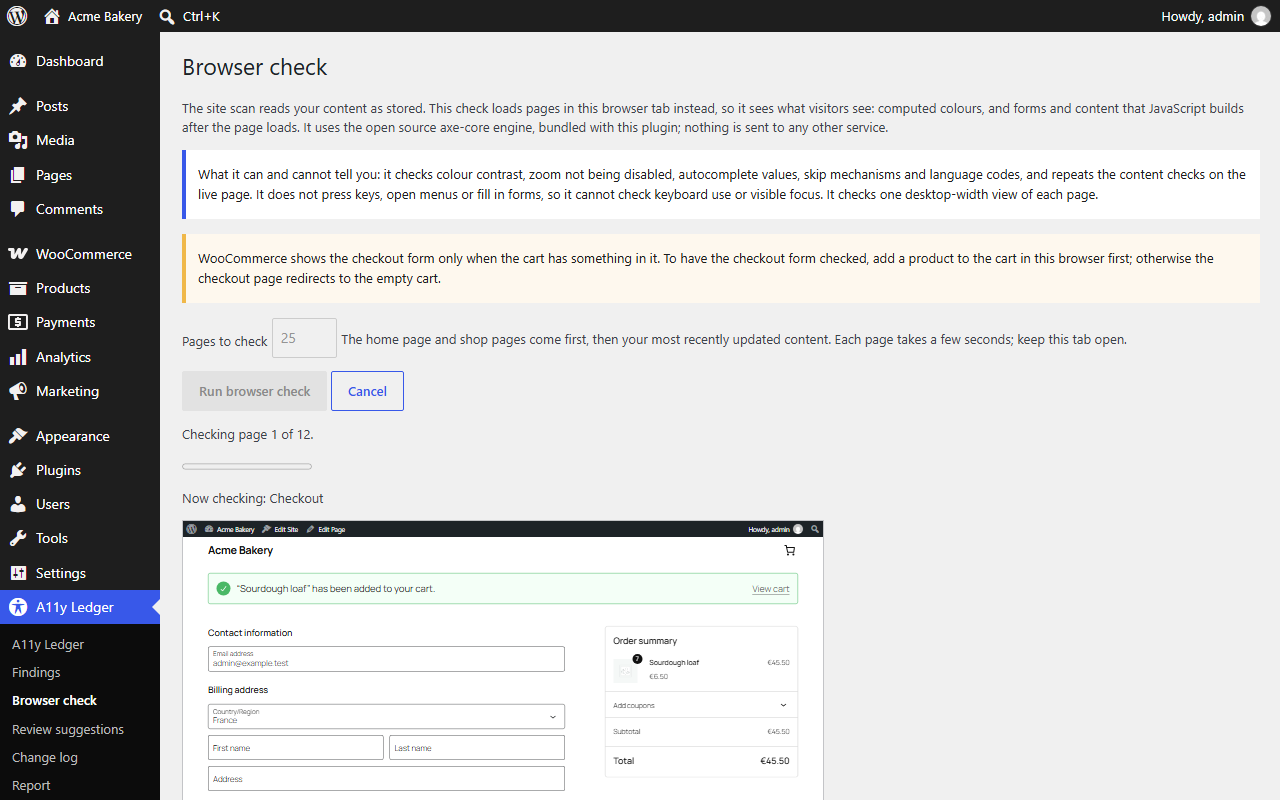
Loads a sample of your pages in your own browser tab and runs the open source axe-core engine on them, bundled with the plugin. It sees what visitors see: computed colour contrast, and forms and content that JavaScript builds after the page loads, such as a WooCommerce block checkout. Nothing is sent to any other service.
It checks the home page and, on a WooCommerce shop, the shop, cart and checkout pages, then your most recently updated posts, pages and products up to the number you choose. It does not sign anyone in or open an account area.
Each run starts with the pages it has never checked, then the ones checked longest ago, so running it repeatedly works through the whole site rather than the same few pages. The screen lists your pages by when each was last checked.
It also raises four things for review rather than as failures, because a machine can see the symptom but not decide the answer: sideways scrolling at 320 pixels wide, elements that show no visible change when focused, clickable elements a keyboard cannot reach, and content that opens on focus and does not close with Escape. Keyboard traps, tab order and content that appears on hover still need a person.
One thing to do first if you want the checkout checked: put something in the cart in that browser. WooCommerce only renders the checkout form when the cart has something in it, so an empty cart redirects and the form is never seen.
How it fixes them
AI drafts the part that is slow to write by hand: alt text. It uses your own provider key through WordPress core's AI Client, under Settings then Connectors. No credits, no per-fix charges; you pay your provider directly, at cost, for whatever volume you run. Scanning, the browser check and the reports all work with no AI configured at all.
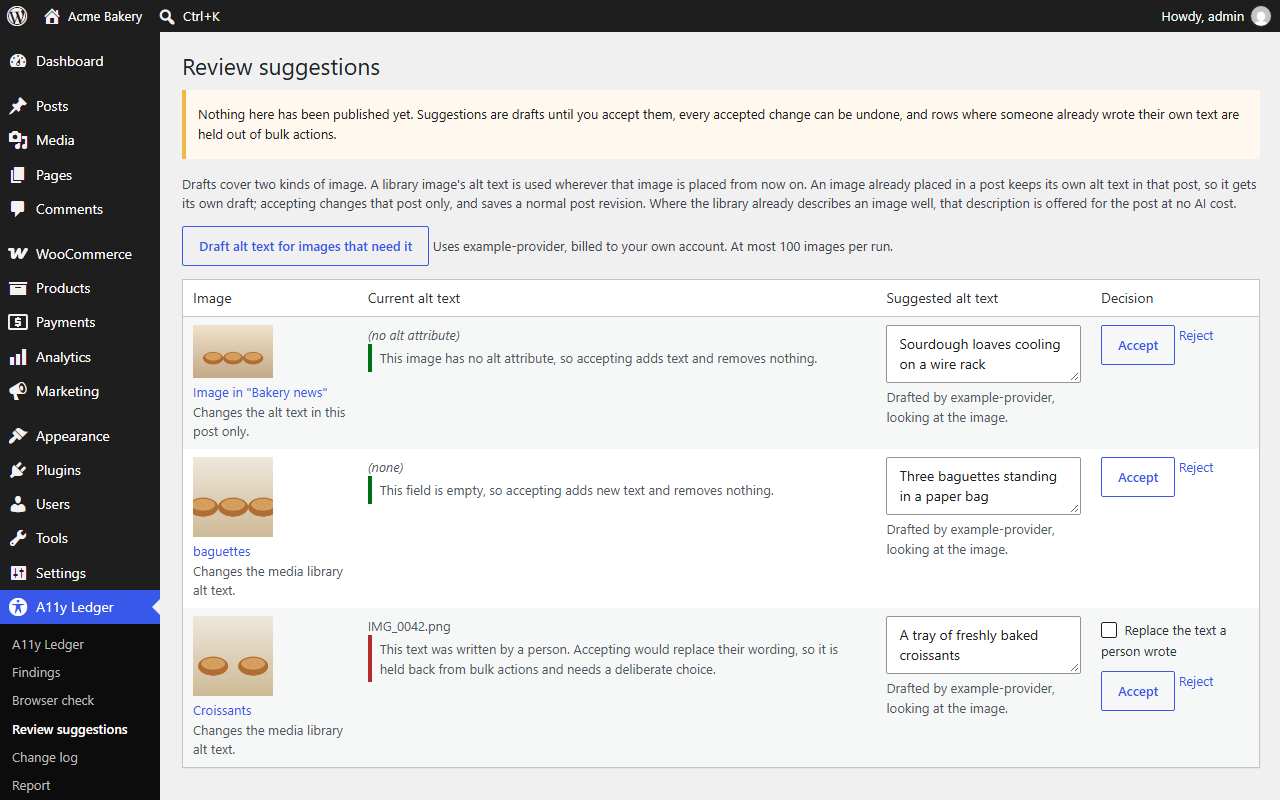
Fixes go where the problem is. A library image's alt text is used wherever that image is placed from then on. An image already placed in a post is fixed in that post, with a normal post revision. Where the library already describes an image well, that description is offered for the post at no AI cost.
Nothing changes without you
- A draft is only a draft until you accept it, and you can edit it first.
- Text a person wrote is never replaced silently. Those items are held out of bulk accept and need a deliberate, one-at-a-time decision. In a post, an image someone marked decorative counts as a person's decision too.
- Every change can be undone. If someone has edited the text since, the undo refuses rather than discarding their edit.
Who can use it, and what leaves your site
Permissions
- Editors and administrators only. Being able to edit a post is not on its own enough to open the plugin.
- Accepting, rejecting or undoing a change also needs permission to edit that post or that image. The plugin's own permission does not override the one on the content.
- Settings are administrator-only.
What is sent to an AI provider, and when
Only when someone asks for drafts. Scanning, the browser check and the reports send nothing to anyone.
When drafts are requested, what goes to your provider is the image, its file name, caption, description and current alt text, together with the title, language and nearby text of the public page it appears on — enough context to describe a picture accurately, and no more.
Nothing from private, draft or password-protected content is ever sent, and neither is anything from a protected download, such as a WooCommerce downloadable file.
What is kept, and what is stripped
- Page snippets stored as evidence have e-mail addresses, phone numbers and URL query strings removed before they are written down.
- The change log is included in WordPress's own personal-data export, so a subject access request covers it like anything else.
- An administrator can opt in to deleting all plugin data when the plugin is uninstalled. By default the evidence is kept, because a record that disappears when someone deactivates a plugin was never evidence — and alt text is never removed either way, since it belongs to your content, not to us.
How much of WCAG this covers
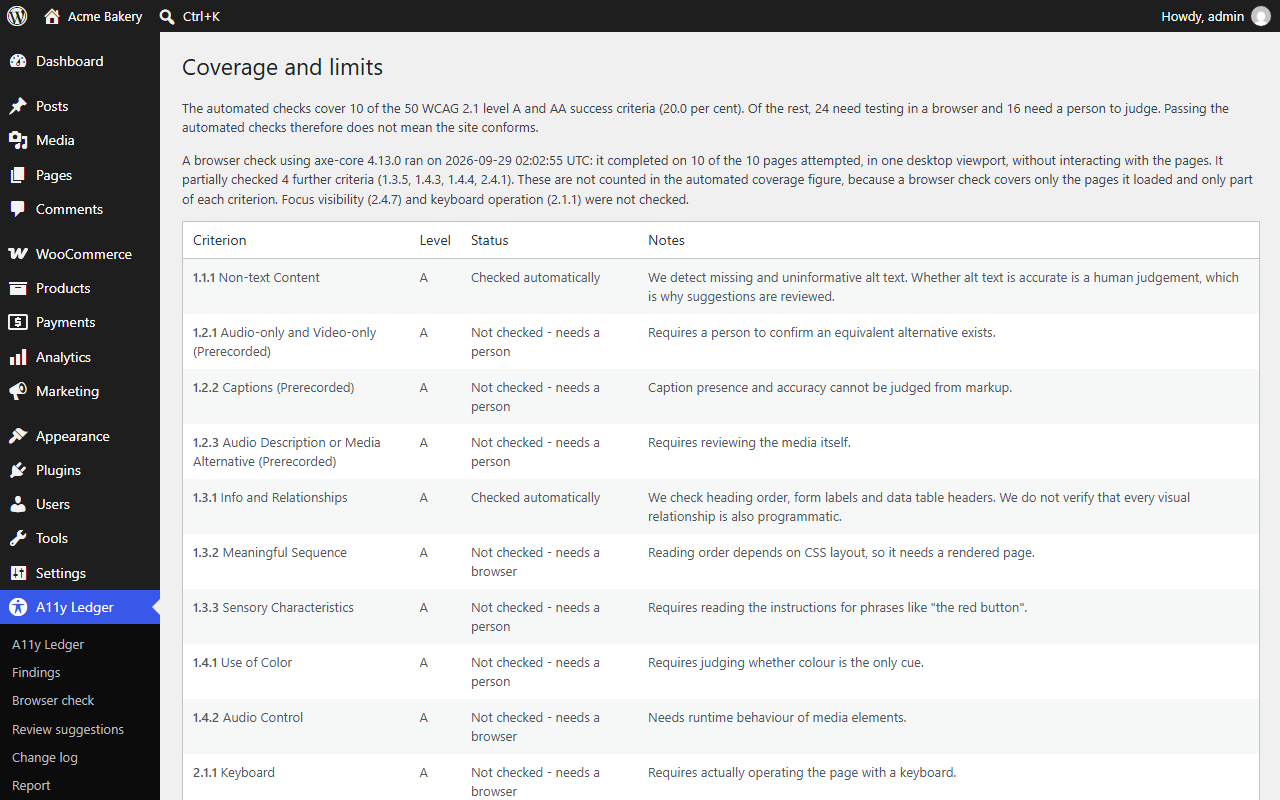
The site scan checks 10 of the 50 WCAG 2.1 level A and AA success criteria. The browser check adds partial checks of a few more on the pages it loads, and the report says exactly which and how far. The rest need a person, and the plugin lists every one of them by name.
Passing the automated checks does not mean your site conforms. We would rather tell you that than let you believe otherwise.
Free and Pro
Free
$0
With WordPress.org for review.
- Full site scan, 10 of 50 WCAG 2.1 A and AA criteria checked automatically
- Browser check with bundled axe-core, run in your own browser
- Unlimited AI alt-text fixes, one at a time, with undo, in the library and in posts
- Append-only change log, including problems a later scan no longer finds
- Browser check rotation, so repeated runs cover the whole site
- Markdown report, with confirmed failures kept separate from items flagged for review
Pro
$59 per year, one site
- Bulk accept and reject on a screen of its own, still never replacing text a person wrote
- Scheduled weekly or monthly re-scans, with a dated history in every report
- JSON export of the report, CSV export of the change log
- A drafted accessibility statement that states the conformance status as not assessed
- A portfolio of your sites, their summaries gathered on one of them
- A network overview of every site's evidence on multisite
- Everything in the free plugin, so you do not need both
Start a 14-day trial — the trial takes a card or PayPal up front but charges $0 today. It runs for 14 days and then renews at $59 a year unless you cancel. Freemius emails a reminder two days before it ends, and you can cancel any time before then.
Both open checkout at checkout.freemius.com.
The free plugin is complete for fixing and recording work one item at a time. Pro uses the same bring-your-own-key AI, with no credits and no per-fix charges. Thirty-day refund, no questions asked.
The drafted statement
Pro drafts an accessibility statement from the same evidence. It states the conformance status as not assessed and lists the failures that were found. It does not claim partial conformance, and it does not claim full conformance, because neither is something this or any other tool is in a position to decide.
What happens after you buy
Pro is a separate plugin, not an unlock code for the free one. Freemius emails you a download link and a licence key. Install Lumadro Accessibility Ledger Pro the way you would any plugin, then activate the key under Plugins with Activate License. It includes everything the free plugin does, so you do not need to install both.
Requirements
| WordPress | 6.2 or newer, tested up to 7.1 |
|---|---|
| PHP | 7.4 or newer |
| AI | Optional. Your own provider key through WordPress core's AI Client |
| Licence | GPL-2.0-or-later |
The free plugin
The free plugin has been submitted to WordPress.org and is waiting on review. Email support@lumadro.com to hear when it is listed, or to say what you would need it to do. Pro does not wait on that review and is available above.